The following video tutorial shows how to create a nifty glass button in WPF using Microsoft Expression Blend 2. This is the first time I've actually made a screencast and it didn't turn out too bad. I'm sure it could be better. So, feel free to comment on anything that you like or don't like.
About Me

- Angelo
- I'm a colonist who has declared war on machines and intend to conquer them some day. You'll often find me deep in the trenches fighting off bugs and ugly defects in code. When I'm not tappity-tapping at my WMD (also, known as keyboard), you'll find me chatting with friends, reading comics or playing a PC game.
Tuesday, July 28, 2009

Saturday, July 25, 2009
SMSBalcony on LWUIT Featured Apps Gallery
I've been working on this J2ME based mobile application named SMSBalcony and its been featured on the LWUIT Featured Apps Gallery. Check it out here. Some of the other apps in the gallery are much better though. :) Perhaps someday, I'll be skilled enough to do stuff like that.
Sunday, July 19, 2009
Fate: Another Diablo Clone.
Fate is a dungeon crawler released in 2005 by Wild Tangent for the PC. Prima Facie, it seems like just another Diablo clone but there's a lot more to it. Ever since I completed Diablo II (about 3 times with different warrior classes :) ), I lay in wait for another Diablo Clone to come my way. Titan Quest (released in 2006) was great and maybe I'll blog about that someday. Diablo III is still in the works. So, in the meantime, let's talk about Fate.
Here are some of the nice things that I noted about Fate:
 ("Don't bite the townsfolk." My pet may look like a Widow Spider but its still a dog at heart.)
 (Me and the boys taking care of business.)
 ("Neat particle effects, guys but that won't stop me from taking you OUT!")
Here are some of the nice things that I noted about Fate:
- The game isn't as dark and gritty as Diablo II. The graphics are a lot more kiddish. Its 3D though but I find that sometimes when 2D artwork is done well in can look a lot better than a 3D game.
- You have a pet (a dog or a cat) that fights on your behalf and can run back to town to sell items. The pet can also be transformed into some of the monsters that we encounter by feeding it fish!
- Death isn't as frustrating as in Diablo. If the player dies, Fate itself appears and offers to resurrect the player (at the cost of experience, gold or both).
- The dungeon level layouts and monsters and treasures are randomized.
- You don't have different character classes as in Diablo II. The decision to be groomed as a brawler, sorceror or something in between is made while playing the game (Like purchasing sorceror items, giving more priority to Magic points instead of Strength).
 ("Don't bite the townsfolk." My pet may look like a Widow Spider but its still a dog at heart.)
 (Me and the boys taking care of business.)
 ("Neat particle effects, guys but that won't stop me from taking you OUT!")
Saturday, July 18, 2009
SuperFactory: A generic object factory implementation in C++
If you ever wanted to use an object factory that works out of the box in C++, then this article written by Francis Xavier might help you out.
http://www.gamedev.net/reference/snippets/features/supFactory/
http://www.gamedev.net/reference/snippets/features/supFactory/
Monday, July 6, 2009
Cppcheck - An open source C++ static analysis tool
How would you identify potential flaws in your code? Conducting a code review would make sure that:
1. Possible errors/exceptions are dealt with.
2. Proper design patterns and good coding idioms have been used.
3. Common logical errors are eliminated and more...
However if bugs were introduced by a human in the first place, then those self-same bugs could be missed during a code review. Human program-comprehension is not very reliable.
Now, what if there were a tool to conduct the code review? That's what Static Code Analysis is for. It involves the analysis of program code without actually executing it. Of course, unlike a human, a tool that automates the process of static analysis can't really consider design issues on a large scale. It can offer advice about certain basic design patterns and good programming practices but it can't go beyond that and look at the big picture.
There are plenty of great static analysis tools around. You can get a complete list here. If you're a C/C++ programmer, you might want to try out Cppcheck. Its been GPL licensed and has a QT application front end for those who don't want to get their hands dirty with the command line. :)
Wiki entry on Cppcheck
SourceForge Project site of CppCheck
1. Possible errors/exceptions are dealt with.
2. Proper design patterns and good coding idioms have been used.
3. Common logical errors are eliminated and more...
However if bugs were introduced by a human in the first place, then those self-same bugs could be missed during a code review. Human program-comprehension is not very reliable.
Now, what if there were a tool to conduct the code review? That's what Static Code Analysis is for. It involves the analysis of program code without actually executing it. Of course, unlike a human, a tool that automates the process of static analysis can't really consider design issues on a large scale. It can offer advice about certain basic design patterns and good programming practices but it can't go beyond that and look at the big picture.
There are plenty of great static analysis tools around. You can get a complete list here. If you're a C/C++ programmer, you might want to try out Cppcheck. Its been GPL licensed and has a QT application front end for those who don't want to get their hands dirty with the command line. :)
Wiki entry on Cppcheck
SourceForge Project site of CppCheck
Saturday, June 27, 2009
AIMP2: A free Audio Player
AIMP2 is a free audio player. While the player appears free for now, there might possibly be a paid version in the future. The look and feel of AIMP2 lies somewhere between players like VLC (not so great looking...) and WinAmp (overkill!). I found this player to be pretty feature rich and less buggy too.
Check it out at http://www.aimp2.us

Check it out at http://www.aimp2.us
Wednesday, April 15, 2009
Customizing the items in a WinForms ComboBox
The combo box is one of the favoured means by which users can select one from a group of pre-defined options. It provides a neat interface and reduces on-screen clutter. The items in a combo box are strings by default and for most cases, string items are sufficient for presenting data to the user. For example, a list of cities like "Wayanad", "Trivandrum" and "Ernakulam". However, there may be cases where strings are not enough.
What do we have?
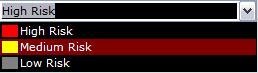
We have an application that displays a demographic map of civil conflict. Areas on this map are categorised as high, medium and low risk. High risk areas are characterized by a red colour, medium risk areas are yellow and low risk areas are grey.
Now, these legend colours need to be presented to the user (There are only three colours here but there could be more). Further more, the user might want to select an area of risk and additional data will be presented to the user based on his/her selection.
What do we need?
We need more than just a standard combo box, we need a customized combo box! Let's call this type of combo box a LegendComboBox. A LegendComboBox will display a rectangle with a colour inside it along with a string. This can be accomplished by manually drawing the items inside the combo box instead of letting it be drawn for us.

How do we get what we need?
Before we dive into creating our LegendComboBox, we need to realize the item(s) that this combo box will hold. Obviously, a simple string won't do because we also need to specify the legend colour for that string. In order to store this information, let's create a new class named LegendItem.
Now, that we know what type of items will be added to the LegendComboBox, let's create the combo box itself.
Step1: We start by deriving our LegendComboBox from System.Windows.Forms.ComboBox.
That way it looks and smells just like a regular combo box.
Step2: In the constructor of LegendComboBox we do two things.
First, we set the DrawMode of this combo box to OwnerDrawVariable. This indicates that we want to manually draw the items in the combo box. Secondly, we register a function with the DrawItem event. This function will be invoked whenever a particular item in the combo box is to be drawn on the screen.
Step3: The next step is to actually define the function that we registered with the DrawItem event of our combo box. This function will have a prototype of:
void LegendComboBox_DrawItem(object sender, DrawItemEventArgs e);
DrawItemEventArgs provides data about the item to be drawn.
This data includes the index of the item to be drawn, the graphics surface on which to do the drawing, and the area within which we can do the drawing.
That's it. We're done.
How do we use what we've got?
Using the LegendComboBox is pretty straightforward. Create an instance of this class and then add LegendItems to it.
A better solution would be to make this LegendComboBox a control that can be used in any WinForms application.
What have we learnt?
Through an example, we've seen that a WinForms combo box can be customized to display more than just string data. As a matter of fact, the DrawItem event is available for the ListBox and TabControl controls as well. Also, we aren't restricted to just drawing shapes for our items, we could even draw images and more.
What do we have?
We have an application that displays a demographic map of civil conflict. Areas on this map are categorised as high, medium and low risk. High risk areas are characterized by a red colour, medium risk areas are yellow and low risk areas are grey.
Now, these legend colours need to be presented to the user (There are only three colours here but there could be more). Further more, the user might want to select an area of risk and additional data will be presented to the user based on his/her selection.
What do we need?
We need more than just a standard combo box, we need a customized combo box! Let's call this type of combo box a LegendComboBox. A LegendComboBox will display a rectangle with a colour inside it along with a string. This can be accomplished by manually drawing the items inside the combo box instead of letting it be drawn for us.
How do we get what we need?
Before we dive into creating our LegendComboBox, we need to realize the item(s) that this combo box will hold. Obviously, a simple string won't do because we also need to specify the legend colour for that string. In order to store this information, let's create a new class named LegendItem.
//The type of item that can be added to a LegendComboBox.
public class LegendItem
{
public object Data { get; set; }
public Color Color { get; set; }
}
Now, that we know what type of items will be added to the LegendComboBox, let's create the combo box itself.
Step1: We start by deriving our LegendComboBox from System.Windows.Forms.ComboBox.
That way it looks and smells just like a regular combo box.
Step2: In the constructor of LegendComboBox we do two things.
First, we set the DrawMode of this combo box to OwnerDrawVariable. This indicates that we want to manually draw the items in the combo box. Secondly, we register a function with the DrawItem event. This function will be invoked whenever a particular item in the combo box is to be drawn on the screen.
public class LegendComboBox : System.Windows.Forms.ComboBox
{
   public LegendComboBox()
   {
    this.DrawMode = System.Windows.Forms.DrawMode.OwnerDrawVariable;
    this.DrawItem += new DrawItemEventHandler(LegendComboBox_DrawItem);
    ...
   }
}
Step3: The next step is to actually define the function that we registered with the DrawItem event of our combo box. This function will have a prototype of:
void LegendComboBox_DrawItem(object sender, DrawItemEventArgs e);
DrawItemEventArgs provides data about the item to be drawn.
This data includes the index of the item to be drawn, the graphics surface on which to do the drawing, and the area within which we can do the drawing.
void LegendComboBox_DrawItem(object sender, DrawItemEventArgs e)
{
e.DrawBackground();
LegendItem currentItem = null;
Rectangle rect = new Rectangle(2, e.Bounds.Top + 2,
                               e.Bounds.Height, e.Bounds.Height - 4);
try
{
   currentItem = (LegendItem)this.Items[e.Index];
}
catch (InvalidCastException)
{
   //If the item in the combo box is not of type LegendItem,
   //then we just draw the item without the legend colour.
   e.Graphics.DrawString(this.Items[e.Index].ToString(), this.Font,
       new SolidBrush(this.ForeColor), e.Bounds);

   return;
}

//Draw rectangle with legend colour.
e.Graphics.FillRectangle(new SolidBrush(currentItem.Color), rect);
e.Graphics.DrawString(currentItem.Data.ToString(), this.Font,
   new SolidBrush(this.ForeColor),
   new Rectangle(e.Bounds.X + rect.Width + 2,
                   e.Bounds.Y, e.Bounds.Width, e.Bounds.Height));
}
That's it. We're done.
How do we use what we've got?
Using the LegendComboBox is pretty straightforward. Create an instance of this class and then add LegendItems to it.
LegendComboBox cboLegend = new LegendComboBox();
cboLegend.Items.Add(new LegendItem { Data = "High Risk", Color = Color.Red });
cboLegend.Items.Add(new LegendItem { Data = "Medium Risk", Color = Color.Yellow });
cboLegend.Items.Add(new LegendItem { Data = "Low Risk", Color = Color.Gray });
A better solution would be to make this LegendComboBox a control that can be used in any WinForms application.
What have we learnt?
Through an example, we've seen that a WinForms combo box can be customized to display more than just string data. As a matter of fact, the DrawItem event is available for the ListBox and TabControl controls as well. Also, we aren't restricted to just drawing shapes for our items, we could even draw images and more.
Subscribe to:
Posts (Atom)